How to do remarketing for people who watched your videos?
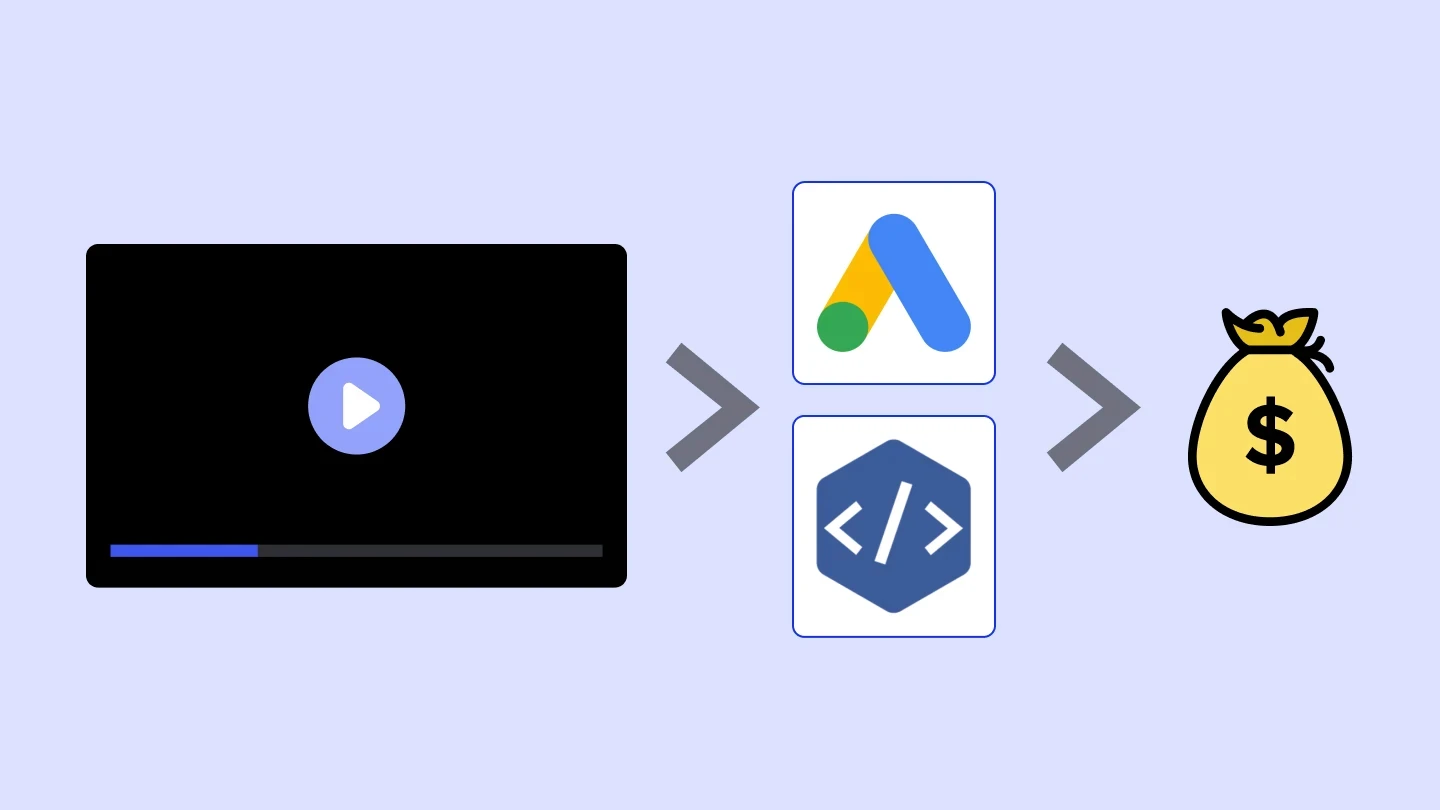

Did you know that out of every 100 people who visit your landing page, only 4 make a purchase? Knowing how to do remarketing is essential to avoid wasting the other 96 opportunities to close sales.
However, beyond cookies and tracking pixels on your page, it’s possible to create even more segmented campaigns to reach a truly engaged audience.
In this article, you will learn:
What remarketing is
Why it’s important to do remarketing with people who watched your videos
Step by step to set up and install pixels on Meta and Google
What is remarketing?
Remarketing is a digital marketing strategy that displays ads to people who have already interacted with your brand. This interaction can happen in several ways:
Visiting your Instagram profile
Reading a blog article
Accessing a Landing Page
Watching videos on a platform
This strategy is highly effective because most people don’t buy the first time they see an infoproduct.
They need time to think and be stimulated through ads. Only then do they make a decision.
Among the main benefits of a well-structured remarketing strategy are:
Increased conversion rates: you’re talking to people who have already shown interest, not strangers
Reduced Cost per Acquisition (CPA): campaigns for warm audiences are usually cheaper than campaigns for cold audiences
Improved ROI: every dollar invested in traffic generates more results when remarketing recovers those who didn’t convert
Why it’s important to do remarketing with people who watched your videos
If you have a VSL (Video Sales Letter) on your Landing Page, you can create ad campaigns targeted only at people who watched the video.
A user who watched your video spent time consuming your content. This means they absorbed part of your message and are more likely to move forward in the sales funnel.
That’s why video is the richest intent signal an infoproduct creator can use in remarketing campaigns. It creates qualified audiences based on real behavior, not just impressions.
Also read: Video lesson hosting: How to choose the ideal one for your student
Which videos generate the best remarketing audiences
Not every video has the same value for segmentation purposes. The most strategic types are:
VSL (Video Sales Letter): people who watch a VSL are already in direct contact with your sales message. Segmenting by watch percentage here is especially powerful. Also read: Remarketing for VSL: 4 segments you need to advertise
Free lessons and lead generation content: those who watch a lesson demonstrate interest in the topic. If they came from paid traffic, they are a qualified lead who hasn’t converted yet. If they came from organic traffic, they are an audience you can activate with ads for the first time.
Webinars and recorded events: the average watch time of a webinar is high. Anyone who watched more than 60 minutes of a recorded event is deeply engaged with what you teach.
Testimonial and social proof videos: people who watch customer testimonials are in the consideration stage. They’ve already seen your value proposition and are evaluating whether they believe in the results.
Advantages of integrating pixels with Panda Video
By connecting Meta and Google Ads pixels to Panda Video, you can track user behavior much more precisely and create highly segmented campaigns.
The main advantages of this integration are:
Captures audiences based on real engagement: The pixel tracks how long someone watched, allowing you to segment campaigns for users more likely to convert.
Reduces budget waste: Instead of targeting any visitor, you can show ads only to those who actually watched the video, optimizing campaign budget.
Creates personalized campaigns: Depending on the percentage of the video watched, you can create specific ads for each level of interest.
Generates more accurate data: With events tracked by Panda Video, you can measure which parts of your video retain attention and where viewers drop off.
Understanding Panda Video pixel events
Panda Video triggers three main pixel events that help segment your audience based on their interaction with the video:
panda_view: triggered when the user views the player on the page. Indicates visual contact with the video, even if they didn’t press play.
panda_play: triggered when the user starts the video. Indicates active interest — the user chose to watch.
panda_watchtime: triggered every 10% of the video watched. This is the most strategic event. It allows you to create custom audiences based on how much of the video was watched.
One of the biggest advantages of using Panda Video instead of YouTube to host courses and VSLs is the ability to combine remarketing with features that help you sell more.
Check out our feature comparison.
How to set up tracking pixels on your videos
For view events to start feeding your campaigns, you need to create pixels on ad platforms and connect them to your desired video.
Creating and installing the Meta Pixel
The Meta Pixel (also known as Facebook Pixel) is the code that allows you to track interactions and create custom audiences in Meta Ads for campaigns on Facebook and Instagram.
To create it, access Meta Business Suite and follow these steps:
Click Settings (gear icon)
Under Data Sources, click Dataset
Click Add to create a new pixel
Name it "Panda Video Pixel" and complete the action
Under Assign People, define who will have access
Click Connect Assets to link your ad account
Click the three dots next to the pixel name and open Events Manager to connect data and generate custom audiences
With the pixel ID in hand, go to the Panda Video dashboard, open the desired video, click Pixel > Add Pixel, select Meta, paste the ID, and publish.
🐼 Tip: Meta Ads Manager is constantly being updated. If something doesn’t match exactly what’s described here, check the Meta Help Center for clarification.
Setting up the Google Ads tag
The Google Ads tag works similarly to the Meta Pixel but feeds campaigns on Google and YouTube.
To set it up:
In your Google Ads account, go to Tools > Shared Library > Audience Manager
On the left, click Your data sources
In the Google Ads tag card, click Set up tag
Select the data the tag will collect
Scroll down to find the tag ID
With the ID copied, repeat the process in Panda Video: open the video, click Pixel > Add Pixel, select Google, and publish.
For platforms beyond Meta and Google (TikTok Ads, Taboola, and others), Panda Video also supports custom events via JavaScript, configured by percentage or specific video timestamps.
You can find the full setup guide in the Panda Video Help Center.
Also read: [Google article] Add tags to your site using Google Ads
Remarketing strategies for people who watched your videos
With pixels set up, the next step is to create different campaigns for each level of engagement. Showing the same ad to someone who watched 10 seconds and someone who watched 80% of the video is one of the most common mistakes in remarketing campaigns.
Here’s how to approach each segment.
For those who watched less than 50%
This audience started the video but left before reaching the main argument. It could be distraction, or maybe the hook wasn’t strong enough.
The goal here is not to sell. It’s to reconnect with the pain point that brought this person to the video. Creatives that validate the ICP’s problem without mentioning the offer perform better than product-focused creatives.
Recommended format: short video (30 to 60 seconds) addressing the core problem from a different angle, or a post with market data reinforcing the topic’s relevance.
Recommended channels: Meta Ads (Feed, Stories, Reels) and short in-stream YouTube Ads.
For those who watched between 50% and 75%
This audience has already heard your value proposition and got close to the pitch. If they didn’t convert, there’s a specific objection: price, trust, or whether it works for their case.
The goal here is to address that objection, not repeat the pitch. Testimonials from customers with the same concern work well, as do cost-benefit comparisons and highlighting guarantees.
Recommended format: short video in FAQ or testimonial format, post with social proof.
Recommended channels: Instagram Feed and Stories, Google Ads Display.
For those who watched more than 75%
This is your hottest audience. They consumed almost the entire message and didn’t buy. The conversion window here is short: the first 48 to 72 hours hold the greatest potential.
The goal is to trigger a decision. Real scarcity (limited spots, deadlines, time-based bonuses), reinforcing guarantees, and social proof from similar profiles.
Recommended format: short video with clear urgency, post with direct CTA.
Recommended channels: Meta Ads conversion campaigns and Google display and video remarketing.
Lookalike: find new leads with the profile of your best viewers
After accumulating enough data, remarketing becomes not just re-engagement but also acquisition.
Both Meta and Google Ads allow you to create similar audiences from a seed list. The logic is simple: you provide the algorithm with your most qualified audience profile, and it finds similar people across the platform.
The most valuable seed list an infoproduct creator can have is the combination of high video engagement and purchase. Those who watched 75%+ of a lesson or VSL and converted represent the ideal profile you want to scale.
For this to work, you need volume. Meta recommends at least 1,000 users in the seed list to generate a high-quality Lookalike audience. If you’re just starting, focus first on accumulating data before activating this step.
Combine remarketing with a great player experience
An effective remarketing strategy doesn’t end with the ad. It ends with the experience the lead has when they return to watch the video.
Imagine you ran an ad for someone who watched 60% of a 40-minute free lesson. They click the ad, return to the page, and have to watch the video from the beginning again. That’s unnecessary friction, and many will drop off before reaching where they left.
The Resume Where You Left Off feature in Panda Video solves exactly this. The user resumes the video at the exact point where they stopped, without needing to manually skip ahead.
If you want to take full advantage of this potential, try Panda Video for free and start optimizing your remarketing campaigns!